Advanced Settings
The Advanced Settings page is your control center for fine-tuning how the PayPal plugin behaves across your entire WooCommerce store. While the main PayPal and Credit Card settings focus on specific payment methods, Advanced Settings houses the configurations that affect your overall payment experience—from how buttons appear on your cart page to how disputes are handled automatically.
Think of this page as the place where you customize the "personality" of your PayPal integration. Here you'll find settings that control visual positioning, business branding, automated workflows, and specialized behaviors that don't fit neatly into other categories. These are the configurations that help you create a seamless, professional payment experience that matches your store's unique needs.
When Should You Use Advanced Settings?
You'll typically find yourself on the Advanced Settings page when you need to:
Solve specific user experience challenges - Maybe customers are confused about button placement, or you need to prevent address changes during checkout
Customize branding and business logic - Setting your business name as it appears to customers, or adding order prefixes to distinguish transactions from multiple sites
Automate payment workflows - Configuring when payments get captured, how refunds are processed, or how disputes are handled
Troubleshoot integration issues - Adjusting validation settings or switching between vault and billing agreement methods
The beauty of these settings is that most have sensible defaults that work for typical stores, but they're here when you need to adapt the plugin to your specific business requirements or solve particular challenges that arise as your store grows.
PayPal Vault Enabled
Controls whether the plugin uses PayPal's modern Vault system or the older billing agreements method for saving customer payment methods. When enabled (recommended), the plugin leverages PayPal's Vault API for storing payment information securely. This is the preferred method as it provides better reliability and security compared to billing agreements and reference transactions.
Default: Enabled
When to adjust: If you encounter permission issues with saved payment methods, you may need to disable this temporarily while reconnecting your PayPal account through the API Settings page.
Display Name
Sets the business name that appears in PayPal's payment popup window when customers complete their transactions. This is what customers see as the merchant name during the PayPal checkout process.
Default: Your WordPress site name
When to adjust: If your business operates under a different name than your website, or if you want to present a more professional brand name to customers during checkout.
Order Prefix
Adds a custom prefix to all order numbers sent to PayPal. This helps distinguish transactions when you're using the same PayPal account across multiple WooCommerce sites.
Default: No prefix
When to adjust: Essential if you run multiple stores with the same PayPal account to prevent invoice number conflicts and keep your PayPal transaction records organized.
Locale Setting
Determines what language PayPal uses for its payment buttons and interface elements. You can either let PayPal automatically detect the customer's preferred language or force it to use your WordPress site's language setting.
Default: Site language
Options:
- Auto: PayPal detects language based on customer's IP address and browser settings
- Site language: Uses your WordPress locale setting
We recommend using Site Language as that ensures the language of the PayPal interface is consistent with your site.
Refund On Cancel
Automatically processes a refund through PayPal when you change an order's status to "Cancelled" in WooCommerce. This creates a seamless workflow between your order management and PayPal's system.
Default: Disabled
When to adjust: Enable this if you want to streamline your refund process and automatically handle PayPal refunds when canceling orders, rather than processing them manually.
Capture Status
Determines which WooCommerce order status triggers the capture of authorized payments. This is crucial for stores that use payment authorization (holding funds) before capturing them.
Whether a payment is authorized or captured is controlled individually for each payment method in the PayPal Settings and Credit Card Settings pages. This Capture Status setting determines when the authorized payment get captured.
Default: Completed
Options:
- Completed: Captures payment when order is marked complete
- Processing: Captures payment when order moves to processing
- Manual: Requires manual capture through the WooCommerce order details page
When to adjust: Change to "Processing" if you want to capture funds earlier in your fulfillment process, or "Manual" if you need complete control over when payments are captured.
3DS Config
Opens a modal where you define how the plugin should react to every possible combination of 3D Secure Enrollment Status, Authentication Status, and Liability Shift result that PayPal returns for a transaction. For each combination you choose whether the order should Continue or be Rejected.
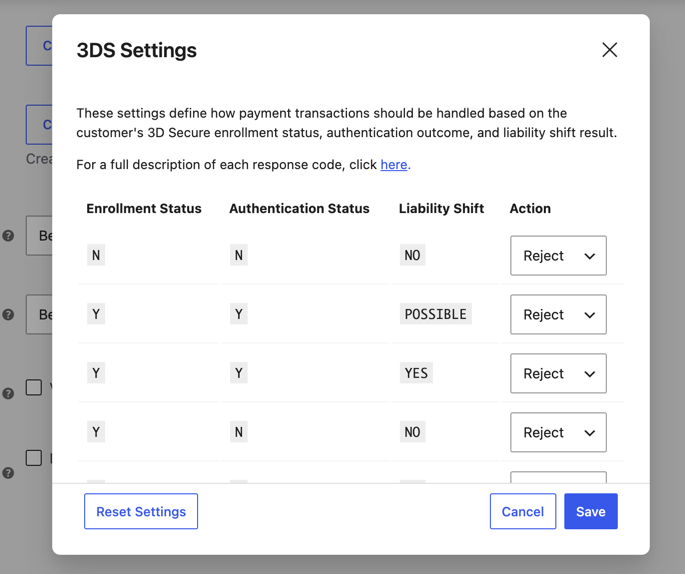
The 3DS Settings modal, where each combination of enrollment status, authentication status, and liability shift maps to a Continue or Reject action.
This setting only controls how the plugin responds to the 3D Secure result. 3D Secure itself must still be enabled (and optionally forced) on the individual payment method's settings page, such as Credit Card Settings.
Default: A recommended set of actions is pre-populated — transactions are rejected when the authentication or liability shift outcome is unfavorable (for example Y_N_NO, Y_R_NO, Y_U_UNKNOWN) and allowed to continue otherwise.
When to adjust: Fine-tune this if your risk tolerance differs from the recommended defaults—for example, if you want to reject more combinations to reduce fraud risk, or allow more combinations to continue to reduce checkout friction. See PayPal's 3D Secure response parameters documentation for a full description of each response code.
reCAPTCHA
Opens a modal where you can enable Google reCAPTCHA v3 verification on the checkout page to help block fraudulent or bot-driven orders before they reach PayPal.
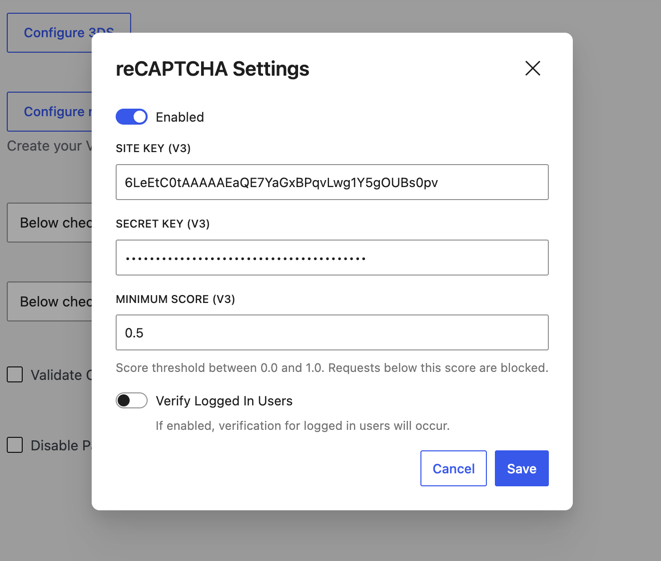
The reCAPTCHA Settings modal, where you enable reCAPTCHA and configure the site key, secret key, minimum score, and logged-in verification.
Default: Disabled
Options (inside the modal):
- Enabled: Turns reCAPTCHA verification on or off for checkout.
- Site Key (v3) / Secret Key (v3): Credentials from your Google reCAPTCHA v3 site.
- Minimum Score (v3): A score threshold between
0.0and1.0. Checkout requests that score below this threshold are blocked. - Verify Logged In Users: When enabled, reCAPTCHA verification also runs for logged-in customers. When disabled, only guest checkouts are verified.
When to adjust: Enable this if your store is experiencing fraudulent orders or bot traffic at checkout. Lower the minimum score if legitimate customers are being blocked too often; raise it if you need stricter fraud filtering.
Cart Button Location
Controls where PayPal payment buttons appear on the cart page in relation to the standard "Proceed to Checkout" button.
Default: Below checkout button
Options:
- Below checkout button: PayPal buttons appear after the standard checkout button
- Above checkout button: PayPal buttons appear before the standard checkout button
When to adjust: If you want to prioritize PayPal payments, move buttons above. If you prefer customers to see your standard checkout first, keep them below.
Mini-Cart Button Location
Similar to cart button location, but specifically controls PayPal button placement in your theme's mini-cart widget (the small cart that often appears when hovering over the cart icon).
Default: Below checkout button
Options:
- Below checkout button: PayPal buttons appear after the mini-cart checkout button
- Above checkout button: PayPal buttons appear before the mini-cart checkout button
When to adjust: Coordinate with your cart button location setting to maintain consistent user experience across all cart interfaces.
Validate Checkout Fields
Forces validation of required checkout fields before allowing customers to proceed with PayPal payment. When enabled, customers must fill out required fields (like billing information) on checkout page before the PayPal popup opens.
Default: Disabled
When to adjust: Enable only if you require specific checkout information that PayPal cannot automatically provide, such as custom fields or specific billing details not covered by PayPal's automatic address population.
Disable PayPal Shipping Address
Prevents customers from changing their shipping address within the PayPal popup during checkout. This forces them to use the address information from your checkout page.
Default: Disabled
When to adjust: Enable if you need strict control over shipping addresses, such as when offering local delivery with specific geographic restrictions or when shipping calculations depend on precise address information.
Dispute Settings
Dispute Created
Automatically responds to PayPal dispute notifications by changing the affected order's status in WooCommerce. This helps you track and manage disputes directly from your store's order management system.
Default: Enabled
When to adjust: Disable only if you prefer to handle disputes entirely through PayPal's interface without affecting your WooCommerce order statuses.
Dispute Created Order Status
Sets which WooCommerce order status gets applied when a PayPal dispute is created. This helps you quickly identify and prioritize orders that need dispute attention.
Default: On Hold
When to adjust: Choose a different status if your workflow requires disputed orders to be marked differently, such as "Pending Review" or a custom status you've created for dispute management.
Dispute Resolved
Automatically restores the order's original status when PayPal notifies that a dispute has been resolved in your favor. This completes the automated dispute workflow.
Default: Enabled
When to adjust: Disable if you prefer to manually review and update order statuses after dispute resolution, rather than having them automatically restored.