4.0.15 Release Notes
Version 4.0.15 is a minor release that adds Adaptive Pricing support to the Universal Payment Method and includes one bug fix.
Download 4.0.15
Additions
Adaptive Pricing for the Universal Payment Method
The Universal Payment Method now supports Stripe's Adaptive Pricing, which shows international customers your prices converted into their local currency at checkout, using Stripe's own exchange rates. Adaptive Pricing is available on both the classic (shortcode) checkout and the checkout block.
Stripe uses the details of each checkout session to determine the customer's likely currency, converts your price into it, and displays a currency selector so the customer can switch back to your store's currency if they prefer. A rate shown to the customer is guaranteed for 24 hours. Regardless of which currency the customer pays in, you're settled the amount you priced the order at, in your own settlement currency. Enabling Adaptive Pricing has no cost or fee to you; Stripe adds a conversion fee of 2–4% to the converted price only when a customer chooses to pay in their local currency, and that fee is included in the price shown to them before they pay.
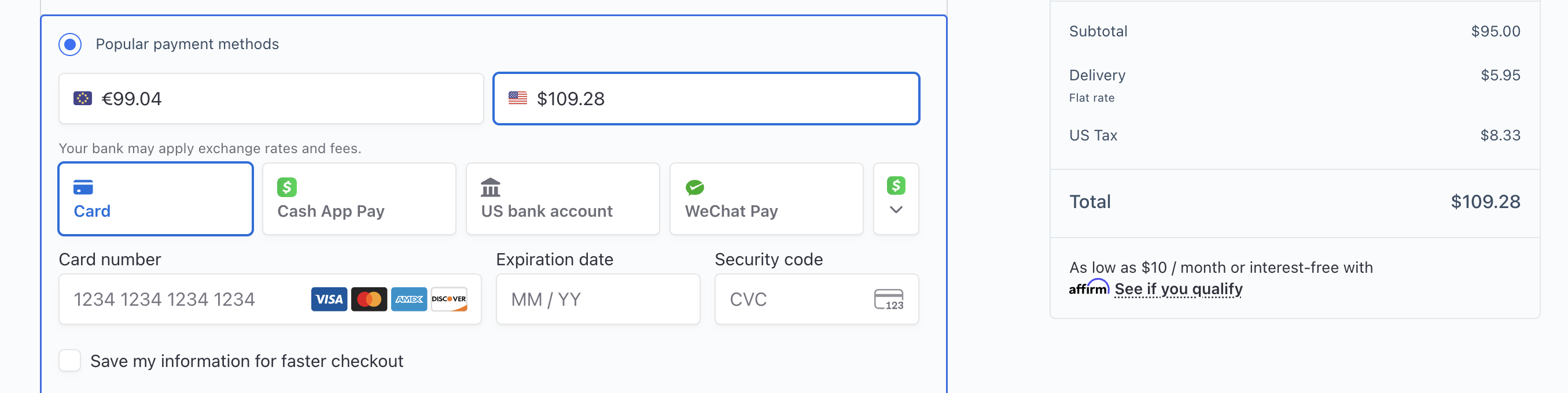
A customer checking out sees the order total in both their local currency and the store's currency, and can pay in either one.
Saved cards and other saved payment methods are automatically dimmed and disabled at checkout if they don't support the currency the customer has selected.
To turn it on, go to the Universal Payment Method's settings page and click Configure Adaptive Pricing. The modal lets you enable Adaptive Pricing and choose whether the currency selector appears above or below the list of payment methods.
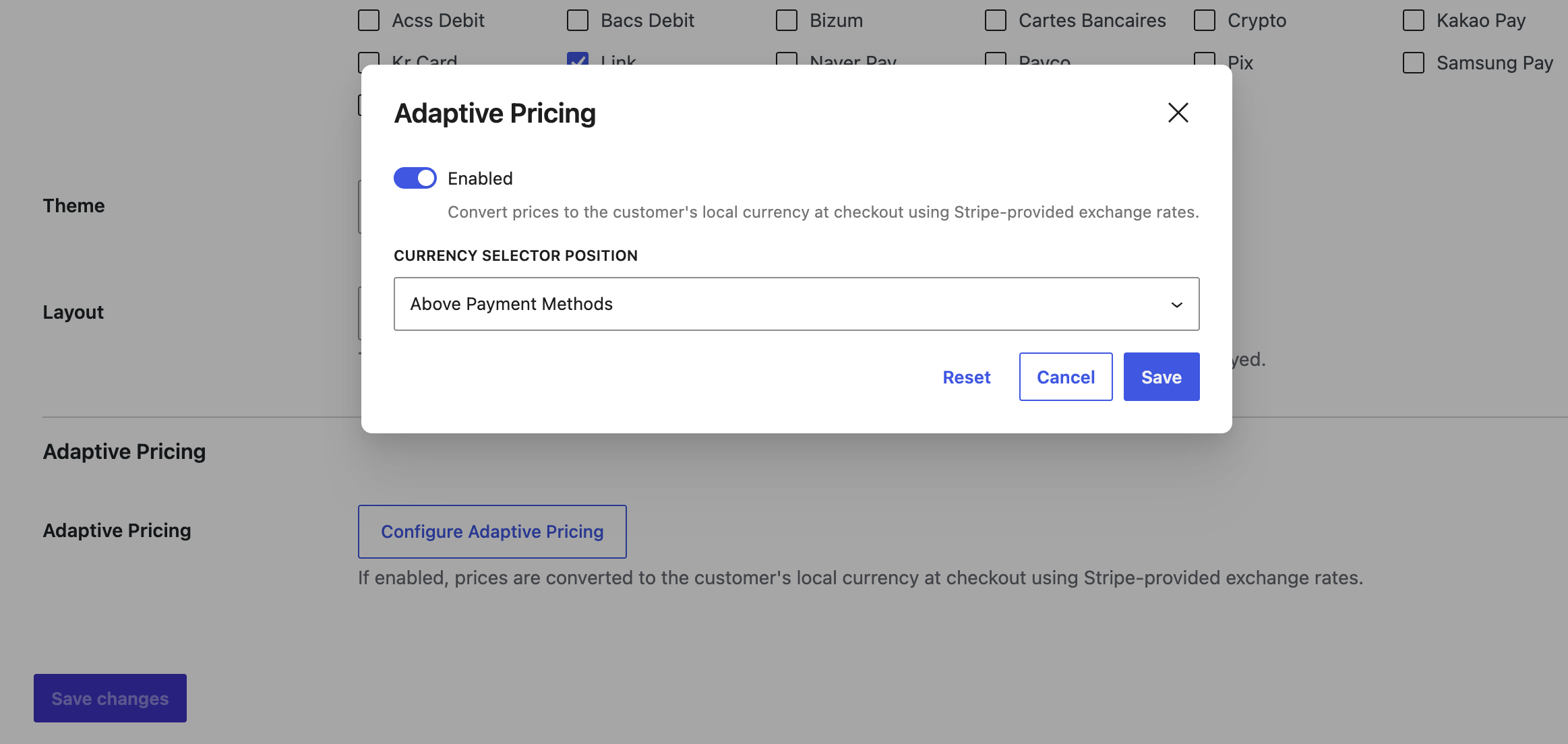
The Adaptive Pricing configuration modal on the Universal Payment Method settings page, opened from the Configure Adaptive Pricing button.
Adaptive Pricing is only available for the Universal Payment Method; it doesn't apply to the other individual Stripe payment methods. The currency selector position setting is respected on both the classic checkout and the checkout block.
Several new filters let you customize how Adaptive Pricing behaves. See New Filters below.
Testing Adaptive Pricing
Stripe determines which currency to present based on signals from the customer's real-world location, which aren't present when you're placing a test order yourself. To see Adaptive Pricing in test mode, you need to simulate a customer location:
- Make sure your store's currency matches your Stripe account's default currency (for example, if your Stripe account's default currency is USD, your store's currency should also be USD).
- Open a private/incognito browser window, so you're testing as a guest with a fresh session rather than a logged-in account.
- In test mode, place a first order as a guest, using an email address in the form
<local-part>[email protected], whereXXis the two-letter ISO country code for the country you want to simulate. For example, to see the checkout as a customer in France would, use an address like[email protected]. This order establishes that email address on your guest session. - In that same private window, add a product to your cart and go to checkout again. The checkout session the plugin creates picks up the email address already on your session from the first order, so you don't need to re-enter it — entering the location-formatted email on this second checkout instead of the first won't work, since the checkout session is created from the session's existing email before you'd have a chance to type it in.
- With the Universal Payment Method selected, the currency selector now appears, showing the currency a customer in that country would see.
If you'd rather test as a logged-in user, you can skip the private window and the first order: log in as a WordPress user who already has a test-mode Stripe customer ID associated with their account, then open that customer in the Stripe Dashboard and change their email address to a location-formatted one before starting checkout.
The +location_XX email format is a test-mode tool for simulating a customer's location. It has no effect in live mode, where Stripe determines the customer's location automatically. See Stripe's documentation on testing with customer email for more detail.
New Filters
| Filter | Description |
|---|---|
wc_stripe_adaptive_pricing_is_available | Controls whether Adaptive Pricing is offered for the current checkout context. Receives the available state, the checkout session controller, and the order (when in the order-pay flow, otherwise null). Used, for example, to turn Adaptive Pricing off for subscription payment-method updates and for pre-order charge-upon-release payments, since both process a payment method without charging it immediately, which Adaptive Pricing's checkout-session flow doesn't support. |
wc_stripe_checkout_session_params | Customizes the parameters used to create or update the Stripe Checkout Session for the cart/checkout-page flow. Receives the params array and the cart. |
wc_stripe_checkout_session_order_params | Customizes the parameters used to create or update the Stripe Checkout Session for the order-pay flow. Receives the params array and the order. |
wc_stripe_checkout_session_order_payment_intent_data | Customizes the payment intent data sent when binding a Checkout Session to an order at confirmation, in the order-pay flow. Receives the data array, the order, and the payment method. This is a narrower set of fields than wc_stripe_payment_intent_args accepts elsewhere in the plugin — Stripe's Checkout Session API only accepts metadata, description, setup_future_usage, and statement_descriptor/statement_descriptor_suffix at this stage. |
Bug Fixes
Wallet Payment Sheet Showed the Wrong Amount for Hungarian Forint (HUF) on the Cart and Checkout Blocks
On the Cart block and Checkout block, stores pricing in Hungarian Forint (HUF) with WooCommerce > Settings > Products > General > Number of decimals set to 0 saw the wrong total in the Apple Pay and Google Pay payment sheet, as well as in the credit card, local payment method, and Universal Payment Method Elements. A 22,950 HUF order showed as roughly 230 in the payment sheet, 100 times too small.
This was a display issue only. The amount actually charged by Stripe was always correct, and the classic (shortcode) checkout was never affected, since it already calculated the Stripe-facing amount independently of the decimals setting.
Merchants commonly set WooCommerce's decimals to 0 for HUF, since HUF prices aren't shown with fractional units on the store. But that setting only controls how WooCommerce displays and rounds prices — it doesn't change how Stripe expects the amount for that currency. Stripe doesn't treat HUF as a zero-decimal currency: it still expects amounts in hundredths, so a 22,950 HUF order must be sent to Stripe as 2,295,000. The Cart and Checkout blocks were sending WooCommerce's displayed amount (22950) to Stripe unconverted, which Stripe read as 229.50 HUF, rounded to 230 in the payment sheet. Blocks-based checkouts now convert the total to the amount Stripe expects for that currency before displaying it in the wallet sheet or Payment Element, so the amount shown always matches the amount charged.